What will we be doing?
In this tutorial, I will teach you how to setup your own Lightning watchtower TEOS (The Eye of Satoshi watchtower) and run it on a server on the cloud. A watchtower shouldn't ideally run on a personal computer, since at some point, you will shutdown that computer and a watchtower should never go offline. We will setup our watchtower on a cloud server so it never goes offline and put our open lightning channel in danger. The best place to deploy a personal watchtower in my opinion though is in a homelab or a personal server. But you shouldn't only rely on one watchtower. Use your friends' towers, let them use yours, and maybe subscribe to a third party one.
For this tutorial, We will be using Oracle Cloud. Oracle Clouds offers the best free tier I could find, and we want to spend as little as possible to get our service up and running.
Note that the service will be altruistic and available for anybody to use and not just you. TEOS doesn't charge users on the provided service as of now (care to help?). It's a lot fun anyways to let people use your stuff rather than using it alone. You can surely figure out a way to stop others from using your service if you want (e.g. put an authentication reverse proxy on the line), but I wouldn't recommend that.
Setting Up Our Server
We will setup our server on Oracle Cloud. You will need a credit card to register for the first time (and you will be charged and then refunded $1 US for security purposes). You will be given the always free resources found here + $300 US for the first month. Our setup will, unfortunately, exceed the free resources limit so you will need to upgrade after a month (this is because the blockchain is about 500GB and the free tier limit offers a maximum of 200GB as of August 8th 22). A 1TB of storage with no disk optimization from Oracle will cost about $25 a month.
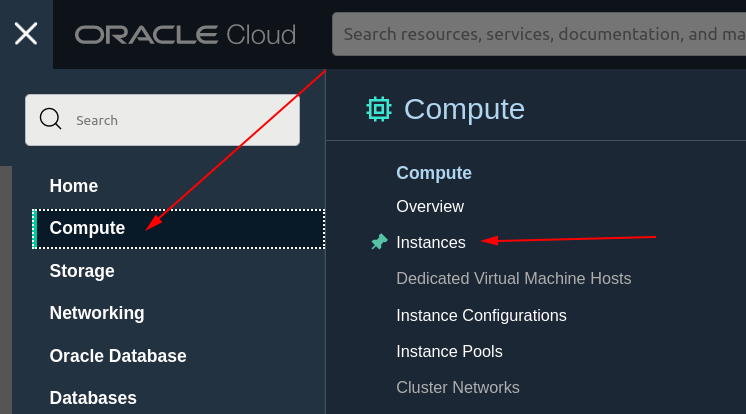
Once the account is setup, head to compute, then instances.
You will see a table like this, but with no running instances:
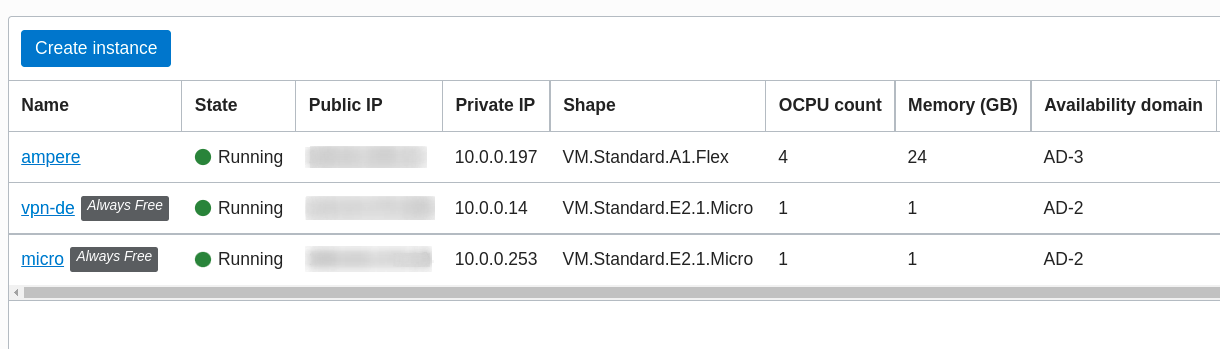
Our goal is to have an instance like micro with 1TB of storage to run the watchtower on the mainnet Bitcoin network.
The mainnet is where real bitcoins are. There are also other networks like signet and testnet, which are for testing purposes.
Click Create instance to being creating the instance we need. Make sure to assign a public IP address for that instance so you and other people can reach it from all over the world. Also, you will need to Specify a custom boot volume size with enough disk storage for the mainnet requirements. We can also use block storage instead and have no disk optimization for a lower charge per month, but then we will have to manage many disks inside the server.
Select the instance shape VM.Standard.E2.1.Micro. This shape has two threads, 1GB ram, and is included in the always-free tier.
You can use any OS image for your server, but the one I recommend is Ubuntu 22.04 (preferably the minimized edition since we won't need all that bloat anyways). Other Linux images might need some work to get Bitcoin and TEOS installed on them successfully.
Once you have configured and created the instances, go to the subnet settings and allow access to ports 22/ssh and 9814/tcp. Port 9814 is the default port on which the tower listens for user requests.
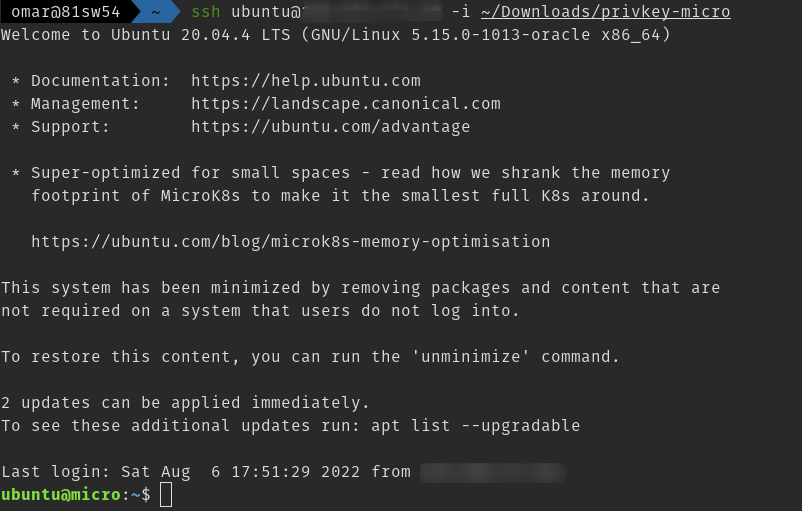
Now ssh to your server using the key given by Oracle while creating it:
ssh ubuntu@YOUR_SERVER_NAME -i PATH/TO/SSH/KEY
You will be greeted with something like this:
You might want to add some swap memory since the server might crash often with this low amount of ram. A 2GB of swap space would be a pretty solid choice:
# Run this in the VM after sshing to it
sudo su                         # To run as root
fallocate -l 2G ~/2gb.swap      # Let's create the swap file in root's home directory
chmod 600 ~/2gb.swap            # Adjust the permission for the swap file
mkswap ~/2gb.swap               # Actually convert it to a swap file
swapon ~/2gb.swap               # Plug the swap on
exit                            # This is to exit from `sudo su` state we are in, since `sudo su` is dangerous!
If you run free -h you will see your swap space listed there.
Now the server is ready to host the watchtower ;).
Setting Up bitcoind
TEOS depends on bitcoind so we will need first to download it. Head to bitcoin.org downloads page and choose a build for the machine you are using. For our micro Oracle Cloud instance we will use the x86_64 build:
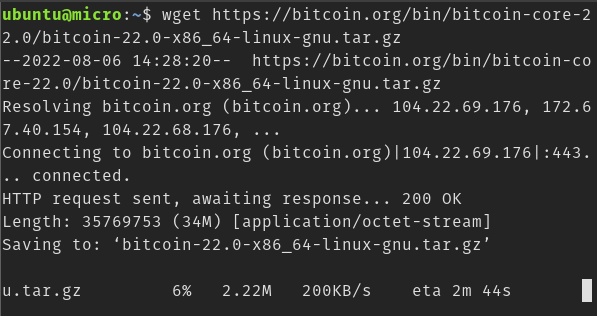
wget https://bitcoin.org/bin/bitcoin-core-22.0/bitcoin-22.0-x86_64-linux-gnu.tar.gz
Now extract the binaries with this command:
tar -zxf bitcoin-22.0-x86_64-linux-gnu.tar.gz

The directory structure of bitcoin-22.0 looks like this:

Looks the same as the directory structure for /usr or /usr/local:

To install bitcoind on the system, copy the bitcoin-22.0 directory content to /usr/local:
sudo cp -r bitcoin-22.0/* /usr/local
Note: You need sudo because only root can write to /usr/local and -r for cp means to recursively copy the directories.
Now if you run bitcoind you will see this:
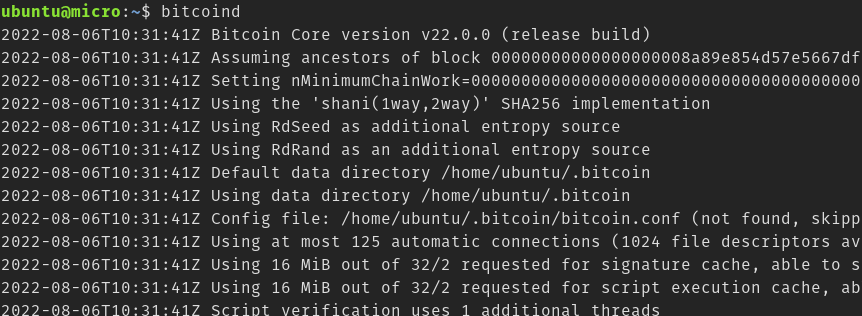
bitcoind now is successfully installed and running (Ctrl+C to stop it). It is downloading the entire blockchain which is about 500GB.
Right now, we can't use bitcoind with TEOS. Some configuration options are missing.
Create a ~/.bitcoin/bitcoin.conf file and populate it using the instructions found here.
You should create strong rpcuser & rpcpassword.
Now run bitcoind again and let it sync. It might take up to a couple of days for the entire blockchain to be downloaded. You can check the number of blocks downloaded till moment by runnig the command bitcoin-cli getblockchaininfo.
Setting Up The Eye
First, you need to have cargo (Rust package manager) installed on your system. Head up to www.rust-lang.org/tools/install and follow along to get Rust and cargo installed on your system. TEOS might publish static builds in the future so users won't have to install Rust and cargo to get their tower up.
Then, run the following commands to install TEOS (you will need to have git installed):
cd ~                                                    # Go to the home directory
git clone https://github.com/talaia-labs/rust-teos.git  # Clone the project
cd rust-teos                                            # Change directory to inside the project directory
cargo install --path teos                               # Install the binaries found in `teos` directory on the system. This will install `teosd` & `teos-cli`
cargo will start compiling the watchtower and it might take about 7~8 minutes in a poor CPU like Oracle Cloud's micros.
After that, you will be able to run teosd or teos-cli from your terminal.
If you run teosd, you will get this error message:

That's because teosd needs to be configured just like bitcoind. Create the configuration file ~/.teos/teos.toml and populate it with teosd configuration options. You can find sample configuration options that you can copy from here.
Note that you will need to match some teosd and bitcoind options (e.g. the Network, RPC user, and RPC password).
Now when you run teosd from the terminal you will see:
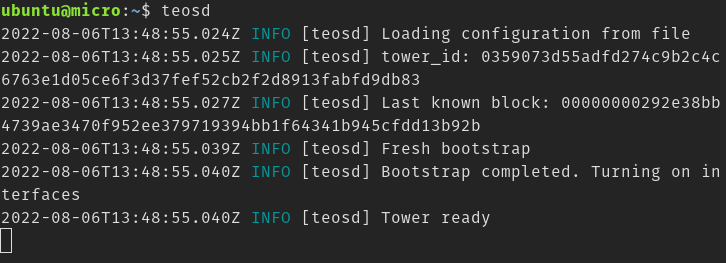
Congratulations!! You have successfully setup your own watchtower and can go on a vacation knowing that your lightning channels are safe ;).
Send a test request to the tower using the following command:
curl -i -H "Accept: application/json" -H "Content-Type: application/json" -d '{"user_id": "03eee489cf70df7da8ac6254fce58b7e245b127022c15111edd856f8193ca75b51"}' -X POST TOWER_PUBLIC_IP:9814/register
This request will register a dummy user 03eee489cf70df7da8ac6254fce58b7e245b127022c15111edd856f8193ca75b51 with the tower. The response should be like this:
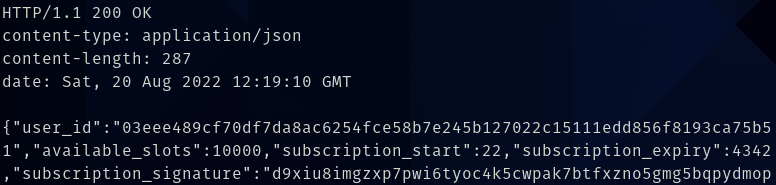
You can use bitcoin-cli stop and teos-cli stop commands to shutdown bitcoind and teosd respectively.
Right now, teosd doesn't have a daemon option like bitcoind. To run it in the background, start it, then press Ctrl + Z (this will stop teosd and give you the terminal back), then run bg in the terminal to continue the stopped job in the background, then finally run disown to disown the running job (this will keep the background job alive even after you exit the SSH session).